
Quick Summary
| Key Insight | What You Need to Know |
|---|---|
| What Is a WooCommerce | What Is a WooCommerce Multichannel Plugin and Why Beginners Need One |
| Real-Time Inventory Synchronization | Real-Time Inventory Synchronization |
| Centralized Dashboard and Order | Centralized Dashboard and Order Management |
| Marketplace Compatibility | Amazon, eBay, Etsy, and Walmart |
| 1. Marqetir, Best for | 1. Marqetir, Best for AI-Powered Cross-Border Selling |
| 2. LitCommerce, Best Free | 2. LitCommerce, Best Free Tier for New Sellers |
Table of Contents
- What Is a WooCommerce Multichannel Plugin and Why Beginners Need One
- Key Features to Look For in a WooCommerce Inventory Sync Plugin
- Best WooCommerce Multichannel Plugins for Beginners: Full Comparison
- 1. Marqetir, Best for AI-Powered Cross-Border Selling
- 2. LitCommerce, Best Free Tier for New Sellers
- 3. CedCommerce Multichannel, Best Native WooCommerce Experience
- 4. Koongo, Best for Wide Marketplace Coverage
- 5. Codisto (Channel Cloud), Best for Amazon and eBay Focus
- 6. WP-Lister Pro for Amazon, Best Deep Amazon Integration
- Free vs. Paid Tiers: Cost-Benefit Analysis for Low-Volume Sellers
- How to Sell on Amazon and WooCommerce Simultaneously: Beginner Setup Guide
- Troubleshooting Common Sync Errors in WooCommerce Multichannel Selling
- How to Choose the Right Plugin: A Beginner Decision Framework
- Conclusion
Last Updated: May 30, 2026
Selling across multiple marketplaces while keeping your WooCommerce store in sync is one of the fastest ways to grow revenue, and finding the best WooCommerce multichannel plugin for beginners is the first real decision that determines whether that growth is smooth or chaotic. This guide from Marqetir breaks down the top options available in 2026, with honest assessments of ease of use, pricing transparency, and what actually happens when you go live. Most comparison guides stop at feature lists. This one goes further: we cover beginner setup steps, free vs. paid tier trade-offs, and the sync errors nobody warns you about.
Here is the uncomfortable truth most listicles skip: the majority of beginners pick a plugin based on brand recognition, not fit. They end up with tools built for high-volume operations, get overwhelmed by configuration, and abandon multichannel selling within 60 days. The right plugin for a new seller is not necessarily the most feature-rich one. It is the one that gets you live on Amazon, eBay, or Etsy without requiring a developer.
Below, we cover six plugins in detail, a beginner setup walkthrough, a troubleshooting section for common sync failures, and a decision framework you can apply in under five minutes.
What Is a WooCommerce Multichannel Plugin and Why Beginners Need One
A WooCommerce multichannel plugin is a software integration that connects your WooCommerce store to external sales channels, such as Amazon, eBay, Etsy, or Walmart, and keeps inventory, pricing, and orders synchronized across all of them from a single interface.
Without one, you are manually updating stock levels on each platform every time a sale happens. That is not a workflow problem. That is a guaranteed path to overselling, negative reviews, and suspended marketplace accounts.
For beginners, the stakes are especially high. A new seller typically has limited catalog management experience, no dedicated operations team, and no tolerance for errors that damage early marketplace reputation scores. A good multichannel plugin removes the manual work that causes those errors. According to WooCommerce's official marketplace documentation, WooCommerce powers a significant share of global e-commerce stores, which means the plugin ecosystem is mature, but also crowded with options that vary wildly in beginner-friendliness.
The core functions you need are straightforward: real-time inventory synchronization to prevent overselling, centralized order management so you are not logging into five dashboards, and marketplace-specific listing compliance so your products actually get approved. Everything beyond that is a bonus.
Key Features to Look For in a WooCommerce Inventory Sync Plugin
Most beginners focus on the wrong criteria when evaluating a WooCommerce inventory sync plugin. They compare the number of supported marketplaces when they should be comparing how the plugin handles the moment a sale happens on two channels simultaneously.
Real-Time Inventory Synchronization
Real-time inventory synchronization means stock levels update across all connected channels within seconds of a sale, not hours. The distinction matters enormously. Batch-sync plugins that update every few hours are acceptable for low-volume sellers with large stock buffers. For anyone selling fewer than 50 units of a SKU, near-instantaneous sync is non-negotiable.
Look specifically for webhook-based sync rather than polling-based sync. Webhooks push updates immediately when an event occurs. Polling checks for changes on a schedule. The difference in response time can be the difference between fulfilling an order and issuing a refund.
Centralized Dashboard and Order Management
A centralized dashboard consolidates orders from Amazon, eBay, Etsy, and any other connected channel into one unified interface, typically inside WooCommerce itself or in a companion SaaS portal. The practical benefit is not just convenience. It is that your fulfillment workflow stays consistent regardless of where the sale originated.
For beginners, a spreadsheet-style interface for bulk listing management dramatically reduces the time required to get a full catalog live. Tools like LitCommerce use this approach effectively. The ability to edit multiple listings simultaneously, apply templates, and push changes in bulk is what separates a two-hour onboarding from a two-week one.
Marketplace Compatibility: Amazon, eBay, Etsy, and Walmart
The major channels for most new sellers are Amazon, eBay, Etsy, and Walmart marketplace. TikTok Shop is growing rapidly as a sales channel, particularly for consumer goods targeting younger demographics. Your plugin must support the specific marketplaces where your customers already shop.
A common mistake is choosing a plugin that lists 500+ supported channels but provides shallow integration for the top four. Depth of integration matters more than breadth. Amazon integration, for example, should include FBA fulfillment support, ASIN matching, and category mapping, not just basic listing creation.
Best WooCommerce Multichannel Plugins for Beginners: Full Comparison
The six plugins below represent the clearest options for new sellers in 2026. Each has a distinct strength that makes it the right choice for a specific type of beginner.
| Plugin | Starting Price | Free Tier | Best For | Key Channels |
|---|---|---|---|---|
| Marqetir | Free trial | Yes | AI-powered cross-border selling | Amazon, eBay |
| LitCommerce | Custom/pay-as-you-go | Yes | Broad marketplace coverage | 20+ channels |
| CedCommerce | $9/month | No | Native WooCommerce experience | Amazon, eBay, Walmart |
| Koongo | €24/month | Yes | Niche marketplaces + comparison sites | 500+ channels |
| Codisto | $29/month | No | Amazon and eBay focus | Amazon, eBay |
| WP-Lister Pro | $199/year | Yes (free version) | Deep Amazon integration | Amazon only |
1. Marqetir: Best for AI-Powered Cross-Border Selling
Marqetir is the strongest option for European merchants and any seller targeting cross-border expansion from a WooCommerce store. The platform uses AI to transform your existing WooCommerce product data into marketplace-optimized listings, handling compliance requirements, smart pricing, and category mapping automatically.

What separates Marqetir from every other plugin on this list is the 99% first-time listing acceptance rate. For beginners, failed listings are a significant time sink. You submit, get rejected for a compliance issue you did not know existed, correct it, resubmit, and repeat. Marqetir's compliance automation eliminates that loop.
The no-listing-fees model is also genuinely unusual. Most multichannel tools charge either a flat subscription or a percentage of sales. Marqetir charges neither a listing fee nor a commission on sales, which makes the cost structure predictable for low-volume sellers who cannot absorb variable fees.
Real-time inventory synchronization prevents overselling, and cross-border selling automation means you can go live on international Amazon marketplaces in minutes rather than days. A free trial is available, and full pricing details are on the Marqetir pricing page.
Pros: AI listing transformation, compliance automation, real-time inventory sync, no listing fees, free trial available Cons: Primarily optimized for European merchants and major marketplace channels
2. LitCommerce: Best Free Tier for New Sellers
LitCommerce takes a different approach: broad marketplace coverage with a genuinely usable free tier and a pay-as-you-go pricing model that scales with your actual usage rather than forcing you into a fixed tier.
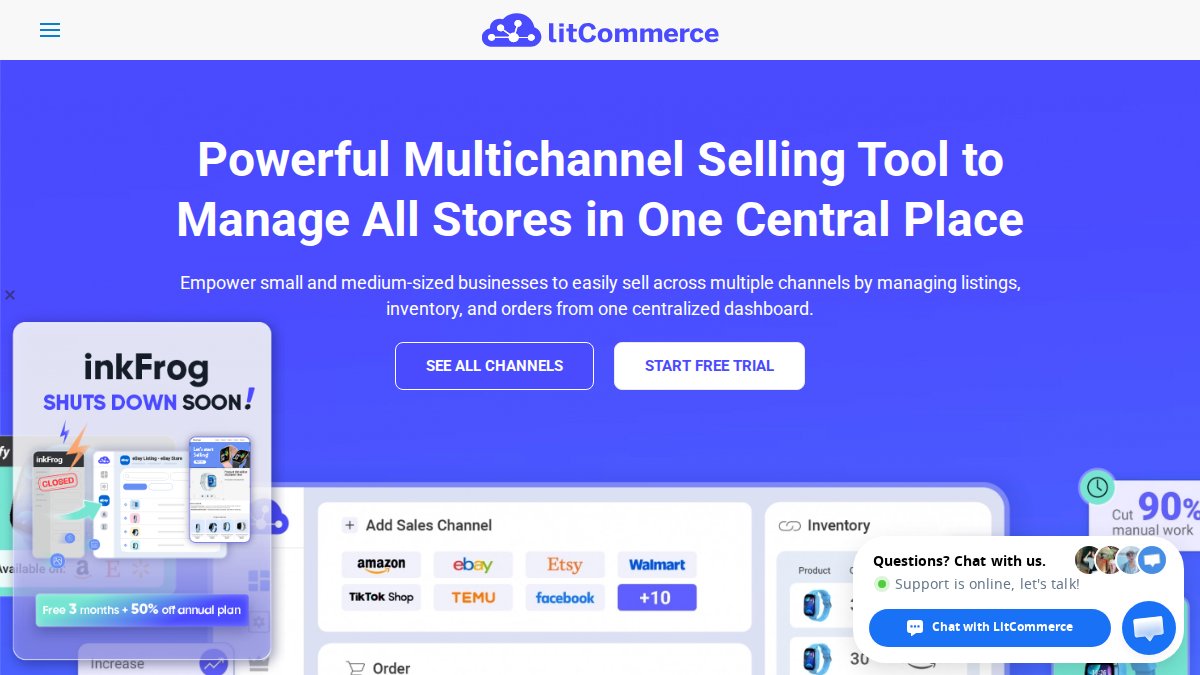
The QuickGrid spreadsheet-style interface is the feature beginners notice first and appreciate most. Bulk editing product listings feels familiar rather than foreign, which matters when you are listing a catalog of 50+ products for the first time. The LiveSync feature handles real-time inventory, price, and order updates across all connected channels.
The honest limitation: pricing increases significantly as listing volume grows. The free tier is generous for testing, but a seller with 500+ active listings across multiple channels will face a meaningful price jump. Map out your projected listing volume before committing.
Pros: Easy setup with no technical skills required, flexible pay-as-you-go pricing, spreadsheet-style bulk editing Cons: Costs scale quickly with listing volume
3. CedCommerce Multichannel: Best Native WooCommerce Experience
For sellers who want to manage everything without leaving their WooCommerce dashboard, CedCommerce is the clearest choice. The plugin operates entirely within the native WooCommerce interface, which means no separate SaaS portal to learn, no context switching between tools.
Automated inventory, price, and order synchronization runs in the background. Category mapping templates handle the tedious work of matching your WooCommerce product categories to marketplace-specific taxonomies. Amazon FBA fulfillment support is included, which is relevant for sellers planning to use Amazon's logistics network.
Starting at $9/month with 24/7 customer support included, CedCommerce is one of the more affordable paid options. The trade-off is that there is no free tier, so you are committing from day one.
Pros: No hidden fees, 24/7 support, fully native WooCommerce experience Cons: No free tier; requires paid subscription immediately
4. Koongo: Best for Wide Marketplace Coverage
Koongo's defining feature is scale: support for 500+ global marketplaces and advertising channels, including niche comparison sites that most other plugins ignore entirely. If your product category benefits from price comparison traffic, Koongo's feed management capabilities are unmatched at this price point.
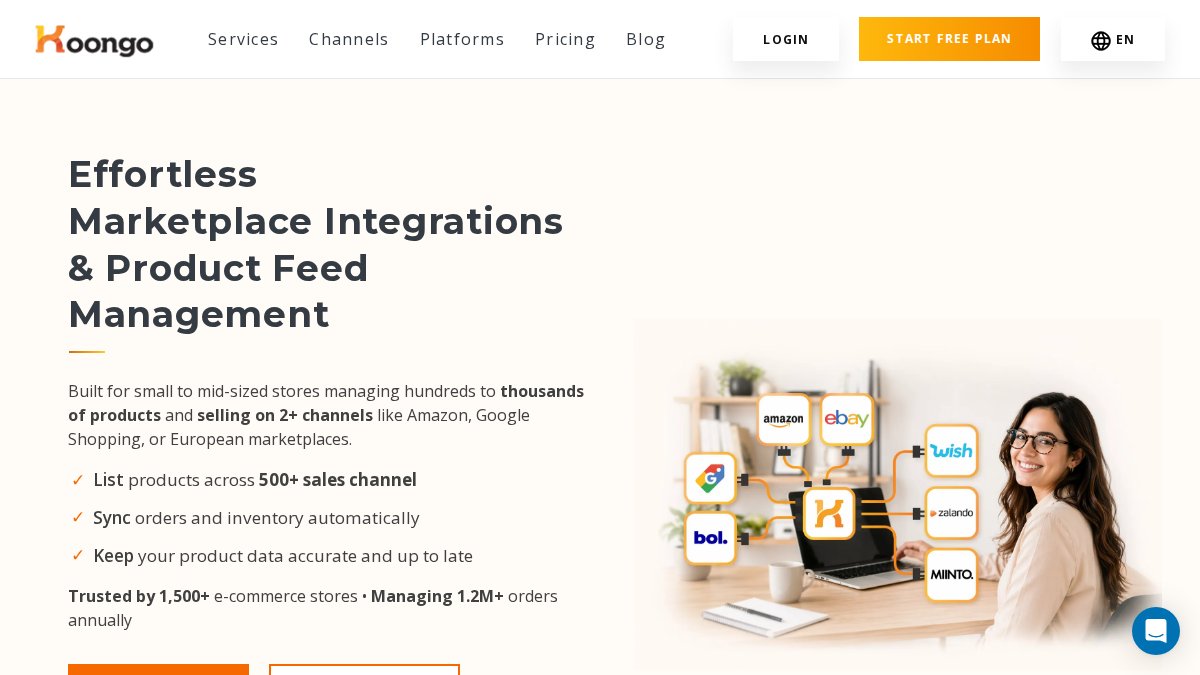
The Advanced Rules Editor gives you fine-grained control over how product data is formatted for each channel. That level of control is genuinely useful once you understand it, but it adds complexity that absolute beginners will find steep. The integration wizard helps, but expect a longer onboarding period compared to LitCommerce or CedCommerce.
Starting at €24/month with a free trial available, Koongo sits in a reasonable price range for what it offers. The ROI calculation is straightforward if you are targeting multiple niche channels. If you are only selling on Amazon and eBay, it is more tool than you need.
Pros: Extremely wide channel support, powerful data filtering, free trial available Cons: Interface complexity is higher than beginner-focused alternatives
5. Codisto (Channel Cloud): Best for Amazon and eBay Focus
Codisto has been around long enough to earn a reputation for stability. Real-time two-way synchronization, bulk listing tools, and native WooCommerce extension architecture make it a reliable choice for merchants who want a proven integration for Amazon and eBay specifically.
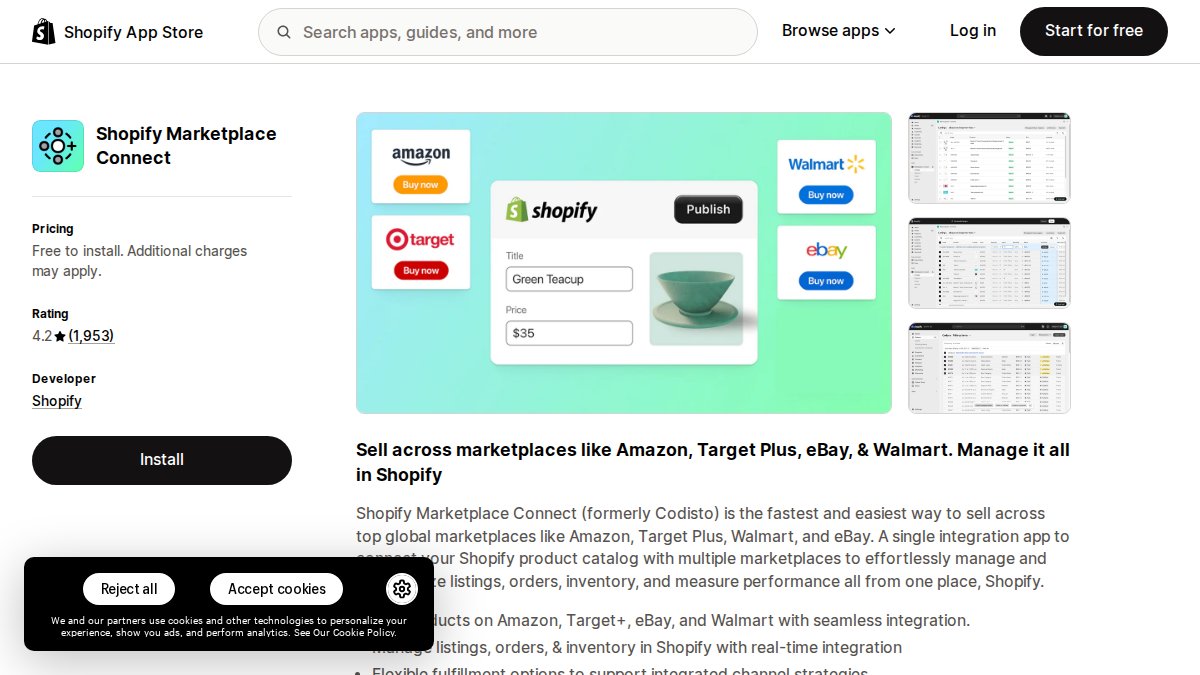
The interface is functional rather than modern. Some users find it dated compared to newer SaaS alternatives. That is a fair criticism, but stability and reliability matter more than UI aesthetics when you are managing live marketplace listings. Codisto does not break in unexpected ways, which is worth something.
At $29/month with no free tier, it is a mid-range investment. The lack of a free trial makes evaluation harder than it should be for beginners.
Pros: Stable and well-established, strong Amazon and eBay integration, bulk management tools Cons: No free tier, interface feels dated compared to newer alternatives
6. WP-Lister Pro for Amazon: Best Deep Amazon Integration
WP-Lister Pro is the specialist option. If Amazon is your primary or only marketplace target, no other plugin on this list matches its depth of Amazon-specific functionality. Bi-directional inventory synchronization, automatic repricing based on competition, Amazon FBA support, and direct order import into WooCommerce cover every core Amazon workflow.
The limitation is explicit in the name: this is an Amazon tool. It does not connect to eBay, Etsy, Walmart, or any other marketplace. If your strategy involves multiple channels, WP-Lister Pro is a component of your stack, not the whole solution. A free version exists for testing, with the full Pro version at $199/year.
Pros: Deepest Amazon integration available, reliable sync, repricing automation Cons: Amazon only; not a multichannel solution
Free vs. Paid Tiers: Cost-Benefit Analysis for Low-Volume Sellers
The conventional wisdom is that free tiers are always worth starting with. The reality is more nuanced, and getting this wrong costs time rather than money. More importantly, the sticker price of a plugin is rarely the number that matters. The number that matters is your total cost per order once you account for subscription fees, per-listing fees, transaction fees, and the cost of the support tier you actually need.
This section breaks down what each plugin's free tier actually includes versus what it gates, and then runs a cost-per-order comparison for a realistic beginner scenario: 75 active SKUs, selling across two channels, processing roughly 30 orders per month.
What Free Tiers Actually Include vs. What They Gate
Most plugin marketing pages describe free tiers in terms of what they offer. The more useful question is what they withhold. Here is what the free and entry-level tiers on this list actually restrict:
| Plugin | Free Tier Exists? | What Is Actually Free | What Is Gated Behind Paid |
|---|---|---|---|
| Marqetir | Yes (free trial) | AI listing creation, compliance check, real-time sync during trial | Full ongoing sync, cross-border automation, priority support |
| LitCommerce | Yes | Up to a limited number of listings on 1 channel, basic sync | Additional channels, higher listing counts, LiveSync frequency |
| Koongo | Yes (trial) | Feed creation and channel testing | Automated sync scheduling, full channel activation |
| CedCommerce | No | , | Everything requires a paid plan from day one |
| Codisto | No | , | Everything requires a paid plan from day one |
| WP-Lister Pro | Yes (free plugin) | Manual Amazon listing creation, basic import | Automatic sync, repricing, FBA support |
The Hidden Cost Breakdown: Subscription vs. Transaction Fees
Plugins monetize in two fundamentally different ways, and mixing them up leads to budget surprises.
Subscription-based pricing (CedCommerce at $9/month, Codisto at $29/month, Koongo from €24/month) means your cost is fixed regardless of order volume. For a seller doing 30 orders per month, CedCommerce costs roughly $0.30 per order in plugin fees. For a seller doing 300 orders per month, it costs $0.03 per order. Subscription models reward growth.
Usage-based or listing-based pricing (LitCommerce's pay-as-you-go model) means costs scale with catalog size and channel count. This is beginner-friendly at very low volumes but can become expensive faster than a flat subscription once you cross certain listing thresholds. A seller with 200 listings across three channels may find a $29/month flat subscription cheaper than a usage-based model that charges per listing tier.
No-listing-fee models (Marqetir) remove one of the most common hidden costs entirely. Many marketplace integrations charge a per-listing fee on top of the subscription, sometimes $0.01 to $0.05 per active listing per month. At 500 listings, that is $5 to $25 per month added to your base subscription cost. Over a year, that compounds meaningfully for a low-volume seller.
The fees the plugin charges are only part of the picture. The marketplaces themselves charge referral fees (Amazon's referral fees range by category, typically 8-15% of the sale price), and some plugins pass through additional API costs for high-frequency sync. These are not plugin fees, but they are costs that your plugin choice influences, a plugin with poor sync reliability causes more cancelled orders and refunds, which have their own cost.
Cost-Per-Order Model: 75 SKUs, 2 Channels, 30 Orders/Month
Using the scenario above as a baseline, here is how the cost structure compares across the paid options:
| Plugin | Monthly Cost | Cost Per Order (30 orders) | Free Trial Available? | Support Tier Included |
|---|---|---|---|---|
| Marqetir | Free trial, then paid | Varies by plan | Yes | Included |
| LitCommerce | Varies by listing count | Varies | Yes | Community + docs |
| CedCommerce | ~$9/month | ~$0.30 | No | 24/7 live support |
| Koongo | ~€24/month | ~€0.80 | Yes | Email + docs |
| Codisto | $29/month | ~$0.97 | No | Standard support |
| WP-Lister Pro | $199/year (~$16.60/month) | ~$0.55 | Free version only | Ticket-based |
At 30 orders per month, CedCommerce's $9/month entry point is the lowest fixed cost among paid options and includes 24/7 support, which has real value when you are troubleshooting your first listing rejection at an inconvenient hour. Codisto's $29/month is harder to justify at this volume without a free trial to validate fit first.
A Practical Framework for Low-Volume Sellers
The right approach depends on where you are in the validation cycle:
- Testing phase (0-50 orders total, not yet live): Use a free tier or trial. Your goal is validating that your product data is clean and your listings get approved, not optimizing for cost. Marqetir, LitCommerce, and Koongo all offer this.
- Early live phase (under 50 SKUs, 1-2 channels, under 50 orders/month): A free tier may cover your needs entirely. If you encounter listing rejections or sync issues and need support, the $9/month CedCommerce entry point is worth it for the support access alone.
- Growth phase (50-200 SKUs, 2-3 channels, 30-150 orders/month): Move to a paid tier. The time saved on bulk management and the reliability of paid sync frequency justifies the cost. Evaluate whether per-listing fees are compounding in your usage-based plan.
- Scaling phase (200+ SKUs, 3+ channels): Evaluate based on per-listing cost and API integration depth. At this volume, per-listing fees and sync reliability become the dominant cost factors, not the base subscription price.
How to Sell on Amazon and WooCommerce Simultaneously: Beginner Setup Guide
Learning how to sell on Amazon and WooCommerce simultaneously is simpler than most guides suggest, provided you follow the steps in the right order. The most common beginner mistake is connecting the plugin before the product data is clean, which causes listing rejections that feel like plugin failures.
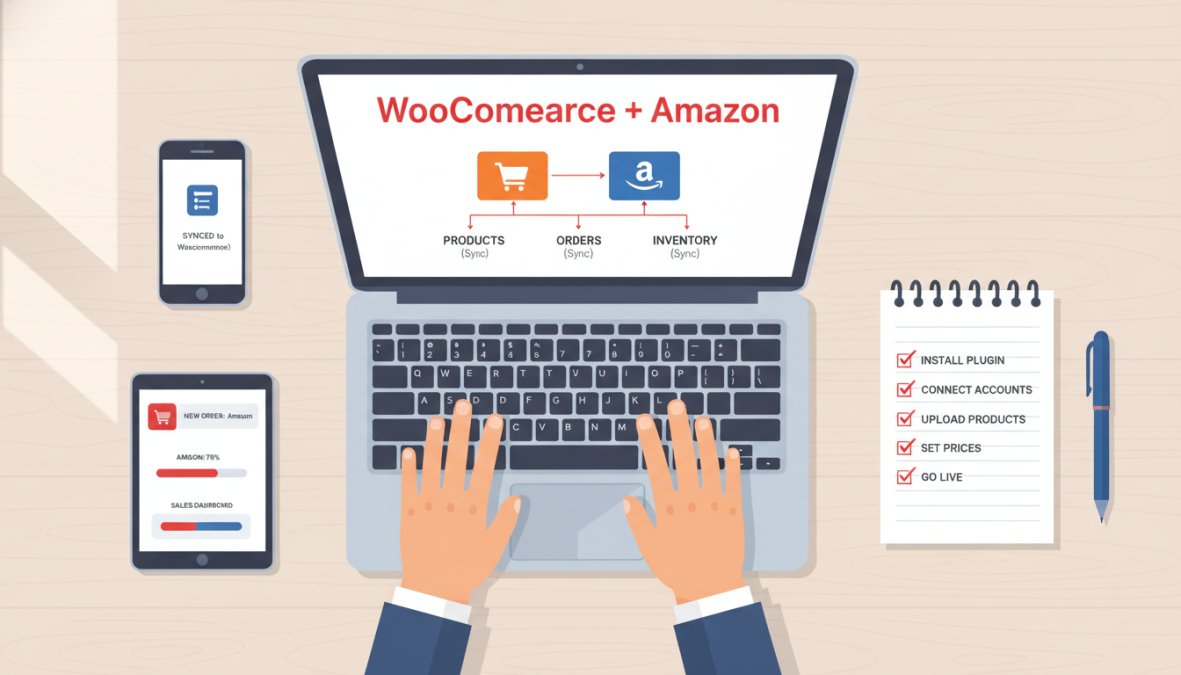
Total Time: 2-4 hours for initial setup Difficulty: Beginner
Step 1: Prepare Your WooCommerce Product Data
Before installing any plugin, audit your WooCommerce product catalog. Every product needs a complete title, description, at least one image meeting marketplace specifications (typically 1000x1000px minimum for Amazon), a valid UPC/EAN barcode, and accurate stock levels.
Missing barcodes are the single most common reason first-time Amazon listings fail. If your products do not have GTINs, apply for a GTIN exemption through Amazon Seller Central before proceeding. This step alone saves most beginners two to three days of back-and-forth.
- Product titles: complete and keyword-relevant
- Descriptions: no HTML formatting that conflicts with marketplace requirements
- Images: minimum 1000x1000px, white background for Amazon
- GTINs/barcodes: present or exemption applied for
- Stock levels: accurate in WooCommerce before sync begins
Step 2: Connect Your Plugin and Map Categories
Install your chosen plugin and authenticate your Amazon Seller Central account. This requires an Amazon Professional Seller account (not Individual). Once connected, the plugin will prompt you to map your WooCommerce product categories to Amazon's browse node taxonomy.
Category mapping is where most beginners spend the most time. Use the plugin's template library if available. CedCommerce and LitCommerce both provide pre-built mapping templates for common categories. Do not skip this step or use approximate mappings. Incorrect category placement is a leading cause of listing suppression on Amazon.
Step 3: Enable Inventory Sync and Go Live
With categories mapped and listings submitted, enable real-time inventory synchronization. Set your sync direction: typically WooCommerce as the master inventory source, pushing updates to Amazon rather than the reverse. This prevents Amazon sales from creating phantom stock in your WooCommerce store.
Run a test order through a sandbox environment if your plugin supports it. If not, fulfill one real order manually and verify that stock levels update correctly across both channels within the expected timeframe. Only after confirming sync behavior should you activate bulk listings.
Expected Result: Products visible on Amazon within 24-48 hours of submission, with inventory levels reflecting WooCommerce stock in real time.
Troubleshooting Common Sync Errors in WooCommerce Multichannel Selling
Sync errors are the moment most beginners conclude that multichannel selling is too technical for them. That conclusion is almost always wrong. The errors themselves are predictable, and the resolution steps are repeatable once you know what you are looking for. This section gives you the specific diagnostic sequence for the five most common failure modes, including the actual error patterns you will encounter and the exact steps to resolve them.
Sync errors fall into five categories. Knowing which category you are dealing with cuts troubleshooting time from hours to minutes.
Error Type 1: SKU Mismatch, The Most Common Beginner Failure
What you see: Products exist in WooCommerce and in your plugin dashboard, but inventory levels on the marketplace do not update after a sale. Or a product shows as "not linked" in the plugin even though you have listed it.
What is actually happening: The plugin links your WooCommerce product to a marketplace listing using the SKU as the unique identifier. If your WooCommerce SKU and your marketplace SKU do not match exactly, including capitalization, spaces, and special characters, the plugin cannot establish the link and sync silently fails.
Resolution sequence:
- In your plugin dashboard, find the product showing sync issues and look for a "linked listing" or "channel mapping" column. A missing or broken link icon confirms a SKU mismatch.
- Go to your WooCommerce product editor and note the exact SKU string, including any leading zeros or special characters.
- Go to your marketplace seller account (Amazon Seller Central → Manage Inventory, or eBay Seller Hub → Active Listings) and find the corresponding listing. Check the SKU field there.
- Make both SKUs identical. It does not matter which side you change, what matters is that they match exactly.
- Trigger a manual sync from the plugin dashboard for that specific product.
Prevention: Use a consistent SKU format across all platforms from the start. A simple format like BRAND-PRODUCTCODE-VARIANT (e.g., ACM-TSHIRT-BLK-M) is readable, unique, and easy to match across systems.
Error Type 2: Authentication Failures and Expired API Credentials
What you see: A "connection lost," "API error," or "authentication failed" message in your plugin dashboard. Sync stops entirely for one or more channels.
What is actually happening: Amazon, eBay, and other marketplaces issue API credentials (tokens or keys) that expire or get revoked. This happens on a schedule, after a password change, after a permissions change in your seller account, or after the marketplace updates its API version.
Resolution sequence:
- Go to your plugin's channel settings and find the authentication section for the affected marketplace.
- Click "Reconnect" or "Re-authenticate", do not try to manually edit the API keys unless the plugin specifically requires it.
- You will be redirected to the marketplace's authorization page. Log in with your seller account credentials and grant the plugin the requested permissions.
- Return to the plugin dashboard and trigger a manual sync to confirm the connection is restored.
- Check whether any listings were suppressed or deactivated during the outage. Marketplaces sometimes suppress listings when they detect a loss of integration connectivity.
Prevention: Set a calendar reminder to check authentication status every 90 days. Amazon in particular rotates certain credential types on a schedule. Proactive re-authentication takes two minutes. Discovering an expired token after three days of missed sync takes much longer to recover from.
Error Type 3: Listing Suppression, Your Product Is Live But Invisible
What you see: Your plugin shows the listing as active and synced, but the product is not appearing in marketplace search results or is showing as "suppressed" in your seller account.
What is actually happening: The marketplace has accepted the listing data but has suppressed it from search due to a quality or compliance issue. Common causes include missing required attributes (Amazon requires bullet points in the product description, for example), images that do not meet specifications, pricing below the marketplace's minimum threshold, or a duplicate listing conflict with an existing ASIN.
Resolution sequence:
- Go directly to your marketplace seller account, do not rely on the plugin's error messages for suppression reasons, as they are often vague or delayed.
- In Amazon Seller Central, go to Inventory → Manage All Inventory → filter by "Suppressed." The suppression reason is listed in the "Status" column.
- In eBay Seller Hub, go to Active Listings and look for listings with a warning icon.
- Address the specific suppression reason in your WooCommerce product data (not in the marketplace directly, or the fix will be overwritten on the next sync).
- Push the corrected listing data through the plugin and wait for the marketplace to re-index it, which typically takes 15 minutes to a few hours.
Common suppression reasons and their fixes:
| Suppression Reason | Fix |
|---|---|
| Missing bullet points (Amazon) | Add 3-5 bullet points to the product description in WooCommerce |
| Image does not meet requirements | Re-upload a 1000x1000px minimum image with a pure white background |
| Price below minimum | Check marketplace minimum pricing rules for your category |
| Missing GTIN/barcode | Apply for a GTIN exemption in Amazon Seller Central |
| Duplicate ASIN conflict | Match to the existing ASIN rather than creating a new listing |
Error Type 4: Inventory Desync, Stock Levels Diverge Between WooCommerce and Marketplace
What you see: You have 20 units in WooCommerce but the marketplace shows 15, or vice versa. Or a sale on one channel does not reduce stock on the other.
What is actually happening: Inventory desync usually has one of three causes: a manual stock adjustment in WooCommerce that the plugin did not capture via webhook, a marketplace order that failed to import into WooCommerce, or a webhook delivery failure caused by server timeout.
Resolution sequence:
- Identify which side has the correct stock level. WooCommerce should always be your master inventory source.
- In your plugin dashboard, find the manual sync or "force sync" option and trigger a full inventory push from WooCommerce to all channels.
- Check your plugin's order import log for the last 24-48 hours. Look for failed imports, these are orders that the marketplace processed but WooCommerce never received, meaning the stock was not decremented.
- For any failed order imports, manually create the order in WooCommerce and adjust stock accordingly, then re-sync.
- If desync is recurring, check your server response time. According to WooCommerce developer documentation on webhooks, webhook reliability depends on server response time. If your hosting environment is slow to respond to incoming webhook calls, the marketplace's delivery attempt times out and the stock update is lost.
Prevention: Set WooCommerce as the explicit master inventory source in your plugin settings. Most plugins have a "sync direction" setting, ensure it is configured as WooCommerce → Marketplace, not bidirectional, until you fully understand how your specific plugin handles conflict resolution.
Error Type 5: Order Import Failures, Marketplace Orders Not Appearing in WooCommerce
What you see: You receive an order notification from Amazon or eBay, but the order does not appear in your WooCommerce order management dashboard.
What is actually happening: The plugin's order import process failed, usually due to a product mapping issue (the plugin cannot match the marketplace order line item to a WooCommerce product), a payment gateway conflict, or a temporary API rate limit from the marketplace.
Resolution sequence:
- Check your plugin's order sync log or error log, most plugins maintain a log of failed import attempts with a reason code.
- If the failure reason is "product not found" or "SKU not matched," this is a variant of the SKU mismatch error above. Resolve the product mapping first, then re-trigger the order import.
- If the failure reason is an API rate limit error, wait 15-30 minutes and trigger a manual order sync. Rate limits are temporary and resolve automatically.
- If orders are consistently failing to import, check whether your plugin requires a specific WooCommerce order status to be configured for imported marketplace orders. Some plugins fail silently if the target order status does not exist in your WooCommerce installation.
- For any order that cannot be automatically imported, create it manually in WooCommerce to ensure fulfillment is not delayed while you troubleshoot.
Quick-Reference Troubleshooting Checklist
When something breaks and you are not sure where to start, run through this sequence before contacting support:
- Is the plugin still authenticated? Check channel connection status in plugin settings.
- Are SKUs consistent between WooCommerce and the marketplace?
- Is the listing suppressed on the marketplace side? Check seller account directly, not just the plugin.
- Is WooCommerce set as the master inventory source in sync direction settings?
- Is there a failed order import in the plugin's log from the relevant time period?
- Is your server responding to webhooks within an acceptable timeframe?
Most sync issues that feel like plugin failures are actually data quality issues (SKU mismatches, missing attributes) or infrastructure issues (webhook timeouts, hosting response time). Resolving those two root causes eliminates the majority of errors beginners encounter in the first 90 days of multichannel selling.
How to Choose the Right Plugin: A Beginner Decision Framework
The right plugin depends on three variables: your primary marketplace targets, your catalog size, and your tolerance for setup complexity. This framework resolves the choice in most cases.
Step 1: Identify your primary channel. If Amazon is your only target, WP-Lister Pro is the deepest integration available. If you are targeting Amazon and eBay together, Codisto or Marqetir are the clearest fits. If you need Etsy, Walmart, or TikTok Shop, LitCommerce or Koongo cover those channels more comprehensively.
Step 2: Assess your catalog size. Under 100 SKUs: any plugin on this list handles your volume. Choose based on channel fit. Over 200 SKUs: evaluate bulk listing tools specifically. The spreadsheet-style interface in LitCommerce and the Rules Editor in Koongo become genuinely valuable at this scale.
Step 3: Evaluate your cross-border ambitions. Selling across European marketplaces or into international Amazon requires compliance handling that most plugins do not automate. Marqetir's compliance-on-autopilot feature is specifically built for this use case and is the reason it ranks as the top recommendation for cross-border sellers.
Step 4: Check free tier availability. If budget is a constraint, Marqetir, LitCommerce, and Koongo all offer free tiers or trials. CedCommerce and Codisto require paid subscriptions from day one.
As noted in Shopify's guide to multichannel selling, the sellers who succeed across multiple channels are those who treat their primary store as the single source of truth for inventory and product data. Choose a plugin that reinforces that discipline rather than one that creates parallel data sources.
The WooCommerce multichannel selling best practices that apply regardless of plugin choice are consistent: keep WooCommerce as your inventory master, audit your product data before connecting any channel, and test sync behavior with a small batch before going live at scale.
| Decision Factor | Best Plugin Choice |
|---|---|
| Cross-border + compliance automation | Marqetir |
| Free tier + broad channels | LitCommerce |
| Native WooCommerce interface | CedCommerce |
| 500+ niche channels | Koongo |
| Amazon only, deep integration | WP-Lister Pro |
| Amazon + eBay, proven stability | Codisto |
Multichannel selling from WooCommerce is achievable for any beginner who picks the right tool and sets it up in the right order. The challenge is that most plugins are built for experienced sellers and assume knowledge that new merchants simply do not have yet. Marqetir addresses this directly: AI-powered listing transformation, compliance automation, and real-time inventory synchronization mean you spend less time configuring and more time selling. The 99% first-time listing acceptance rate and no-listing-fees model make it the clearest starting point for any WooCommerce merchant targeting Amazon or eBay expansion in 2026. Start your free trial with Marqetir and get your first marketplace listings live without the compliance errors that derail most new sellers.
Frequently Asked Questions
What is a WooCommerce multichannel plugin?
A WooCommerce multichannel plugin connects your WooCommerce store to external sales channels like Amazon, eBay, Etsy, or Walmart. It automates tasks like bulk listing, inventory synchronization, and order fulfillment from a centralized dashboard. Instead of manually updating stock levels on each platform, the plugin keeps everything in sync in real time, reducing manual work and the risk of overselling across your entire e-commerce ecosystem.
Are there free multichannel plugins for WooCommerce?
Yes, several options offer free tiers or free trials. LitCommerce has a free plan suitable for sellers with a small number of listings. Marqetir offers a free trial so you can test AI-powered listing transformation and real-time inventory sync before committing. Koongo also provides a trial period. Free tiers typically limit the number of active listings or connected channels, making them ideal for beginners testing the waters before scaling up.
How do I sync inventory across multiple sales channels in WooCommerce?
To sync inventory across channels, install a WooCommerce inventory sync plugin like Marqetir, LitCommerce, or CedCommerce. After connecting your marketplace accounts via API integration, the plugin monitors stock levels in your WooCommerce store and pushes real-time updates to each sales channel whenever a sale occurs. This prevents overselling. Most beginner-friendly plugins handle this automatically once the initial setup and SKU management configuration is complete.
What is the easiest multichannel software for WooCommerce beginners?
For absolute beginners, LitCommerce is widely considered one of the easiest options due to its spreadsheet-style interface and no-code setup. Marqetir is also beginner-friendly, especially for European merchants targeting Amazon and eBay, because its AI handles listing transformation and compliance automatically. CedCommerce operates entirely inside the native WooCommerce dashboard, which removes the learning curve of a new interface. The best choice depends on your target marketplaces and budget.
Do I need a plugin to sell on Amazon and WooCommerce at the same time?
Technically you can manage both manually, but a plugin is strongly recommended. Without one, you must update inventory, pricing, and orders separately on each platform, a process that quickly leads to errors and overselling. A multichannel plugin automates the connection between WooCommerce and Amazon, enabling real-time data sync, bulk listing, and centralized order tracking. For beginners especially, this automation saves significant time and prevents costly fulfillment mistakes as order volume grows.
This article was written using GrandRanker
Ready to transform social listening into proactive protection?
Marqetir pairs AI-powered moderation with human oversight so you catch threats before they spread.
Frequently Asked Questions
What is a WooCommerce multichannel plugin?
A WooCommerce multichannel plugin connects your WooCommerce store to external sales channels like Amazon, eBay, Etsy, or Walmart. It automates tasks like bulk listing, inventory synchronization, and order fulfillment from a centralized dashboard. Instead of manually updating stock levels on each platform, the plugin keeps everything in sync in real time, reducing manual work and the risk of overselling across your entire e-commerce ecosystem.
Are there free multichannel plugins for WooCommerce?
Yes, several options offer free tiers or free trials. LitCommerce has a free plan suitable for sellers with a small number of listings. Marqetir offers a free trial so you can test AI-powered listing transformation and real-time inventory sync before committing. Koongo also provides a trial period. Free tiers typically limit the number of active listings or connected channels, making them ideal for beginners testing the waters before scaling up.
How do I sync inventory across multiple sales channels in WooCommerce?
To sync inventory across channels, install a WooCommerce inventory sync plugin like Marqetir, LitCommerce, or CedCommerce. After connecting your marketplace accounts via API integration, the plugin monitors stock levels in your WooCommerce store and pushes real-time updates to each sales channel whenever a sale occurs. This prevents overselling. Most beginner-friendly plugins handle this automatically once the initial setup and SKU management configuration is complete.
What is the easiest multichannel software for WooCommerce beginners?
For absolute beginners, LitCommerce is widely considered one of the easiest options due to its spreadsheet-style interface and no-code setup. Marqetir is also beginner-friendly, especially for European merchants targeting Amazon and eBay, because its AI handles listing transformation and compliance automatically. CedCommerce operates entirely inside the native WooCommerce dashboard, which removes the learning curve of a new interface. The best choice depends on your target marketplaces and budget.
Do I need a plugin to sell on Amazon and WooCommerce at the same time?
Technically you can manage both manually, but a plugin is strongly recommended. Without one, you must update inventory, pricing, and orders separately on each platform — a process that quickly leads to errors and overselling. A multichannel plugin automates the connection between WooCommerce and Amazon, enabling real-time data sync, bulk listing, and centralized order tracking. For beginners especially, this automation saves significant time and prevents costly fulfillment mistakes as order volume grows.